
Captions
Captions as you speak, written on the iPhone
Most feeds autoplay muted, so a video without captions is a video most people scroll past. On iPhones running iOS 26, Dual Recorder writes the words on screen while you record, saves them with the take, lets you correct any line, and hands the words back two ways: an SRT file for the platforms that take one, or burned into the picture for the ones that do not. No account, no upload, no subscription for the words themselves.
Live captions while you record
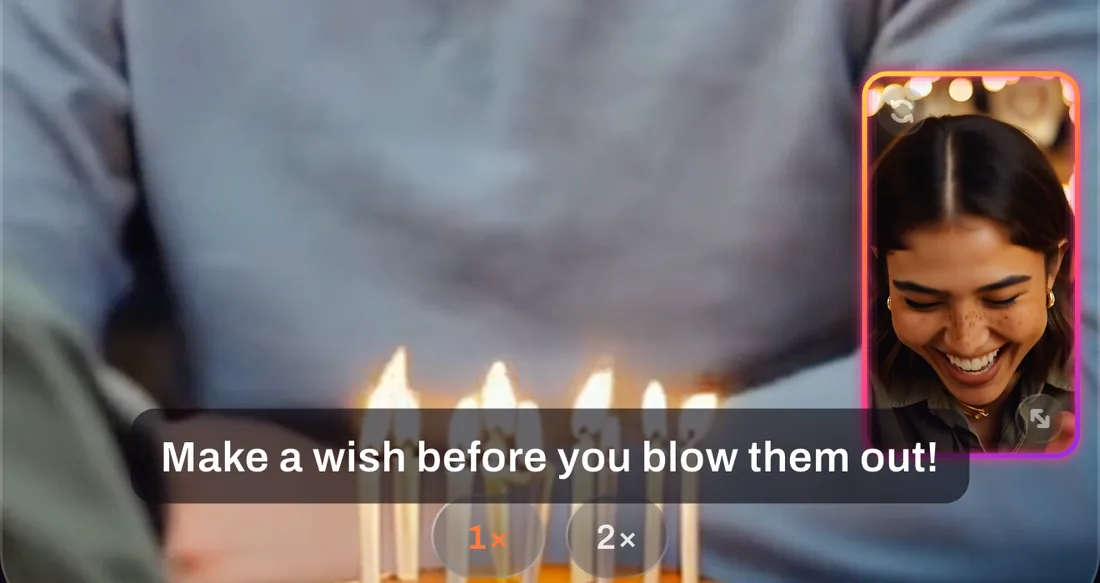
Turn on CC in the camera’s top bar and the words you speak appear on the picture, in the caption band, as you say them. When you stop, the take’s lines are saved as its transcript, including the last line that the speech model finishes a moment after the take ends. Open the take in the editor and the Captions tool is already filled in. The live captions are a guide on screen; they are burned into a video only if you choose that at export.
How the transcript is made
The live captions and the Captions tool in the editor both use Apple’s on-device speech models, and the editor can transcribe any take afterwards. The first run may download a language model; after that the transcription runs on the phone and nothing is sent anywhere. The transcript is split into short cues that end at the end of a sentence, so the words on screen read the way people speak instead of running on in one block.
Correct the words, not the take
Any line can be edited by hand. A corrected line shows in full white so you can see at a glance what you changed. A stumble that would once have meant another take becomes a line you fix in the transcript, which is also why the teleprompter and the captions belong together: read it once, correct it once.
Two ways out
- SRT file. Exported through the iPhone share sheet, because the Photos app does not keep caption files. Upload it beside the video on the platforms that support captions, and viewers can switch them on and off.
- Burned in. The words are drawn into the picture at export. It is permanent, so it is off by default and you choose it per export. In a split layout the caption band sits in the main camera’s half rather than across the seam.
Free, all of it
Live captions, transcribing, correcting and preparing the SRT are free. Burning the words into the picture is free too: a free export is HD with a small Dual Recorder watermark, and PRO exports the same video at full size with no watermark. An SRT is not a video, so it leaves the app as it is.
Which iPhones
Captions need iOS 26, where Apple’s on-device speech models became available to apps. The app checks that the phone can actually transcribe rather than trusting the iOS version alone, and a phone that cannot is simply not offered the tool; there is no greyed-out button to wonder about. Everything else in Dual Recorder works from iOS 15.
Questions
Captions, answered
Which languages are supported?
The languages Apple’s on-device speech models support on your iPhone. The app lists what the phone can transcribe; if the phone supports no language, the tool is not shown.
Are the captions stored with the take?
Yes. Live captions are saved as the take’s transcript when you stop recording. The transcript belongs to the take in the editor, so you can come back and correct it. The SRT and the burned-in video are exports you make from it.
Can I caption a video I did not record in Dual Recorder?
No. The editor works on takes recorded in the app. The library holds those takes and their photos, and nothing else.
Say it once. Read everywhere.
Dual Recorder: Dual Camera is available now on the App Store for iPhone.