
Editor & captions
Trim, caption, find the best clips and post, on the phone
The take is not finished until it is the right length, the right shape and, for most feeds, readable with the sound off. Dual Recorder’s editor does that on the iPhone: a filmstrip trim, any crop, captions written on the device, a layout tool for two-camera takes, Clips that find the best moments, looks and music, and an export that knows a take can be more than one file and more than one shape.
One tool at a time
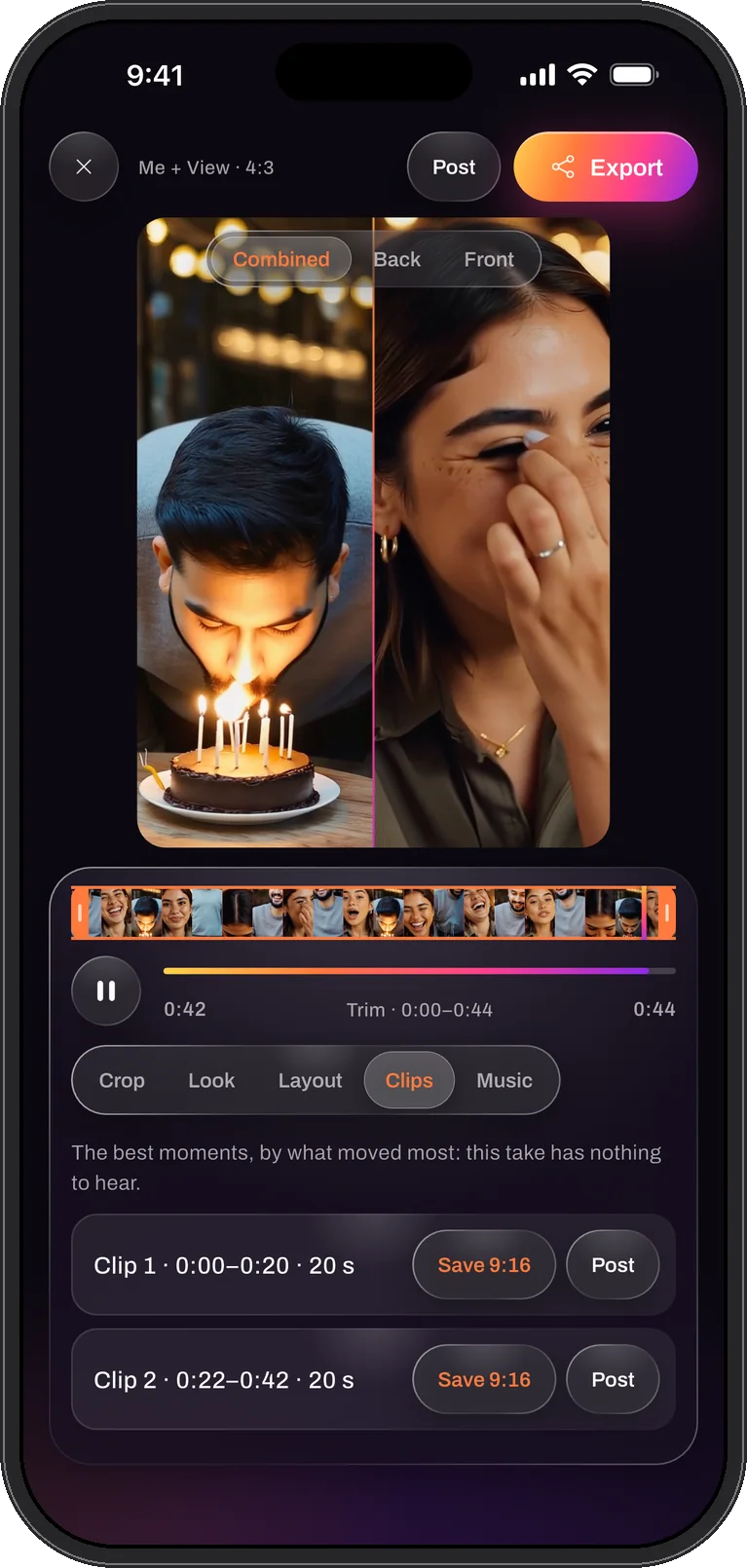
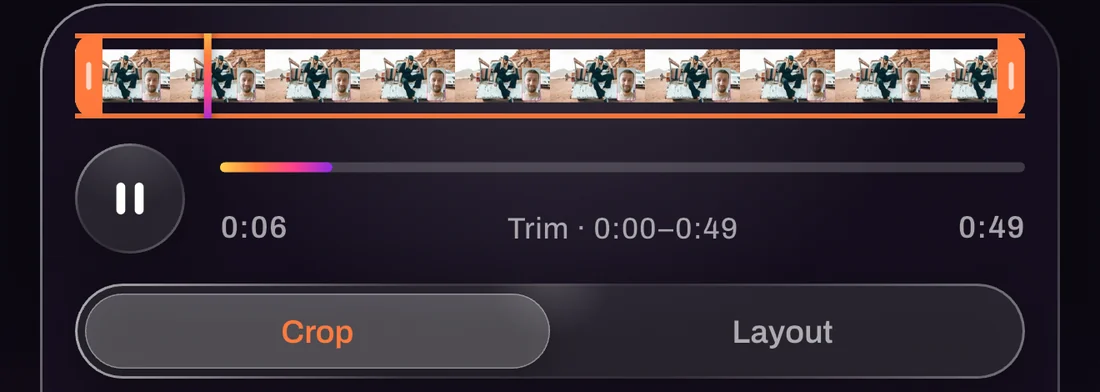
The editor page shows one tool at a time, Crop, Look, Layout, Captions, Clips or Music, over a filmstrip and a playback bar that never leave the screen. Trim handles on the filmstrip set the range, playback loops inside it, and Export is the only gradient button on the page.
A take that saved several videos shows a switch per camera. Trim once, and the range applies to every file; at export, choose all of them or just the ones you want.
Crop to the feed you are posting to
The Crop tool offers the original shape, 9:16, 16:9, 1:1 and 4:3, and the crop can be moved over the picture. A take recorded in 16:9 for a channel can leave as a 9:16 cut for a story, and the source is never changed.
Captions written on the iPhone
On iPhones running iOS 26, the Captions tool transcribes the take on the device with Apple’s speech models; the first run may download a language model, and nothing is sent anywhere. The transcript is broken into short cues that end at sentence ends, so they read the way people speak. Any line can be corrected by hand, and a corrected line shows in full white so you can see what you changed.
Two ways out. Burn the words into the picture at export, which is permanent and therefore off by default, or export an SRT file through the share sheet for the platforms that take a caption file. An iPhone that cannot transcribe is simply not offered the tool; there is no disabled button to wonder about.
On iOS 26 the camera can also write captions live while you record; those lines are saved with the take, so the Captions tool opens with the transcript already there.
Clips: the best moments, picked for you
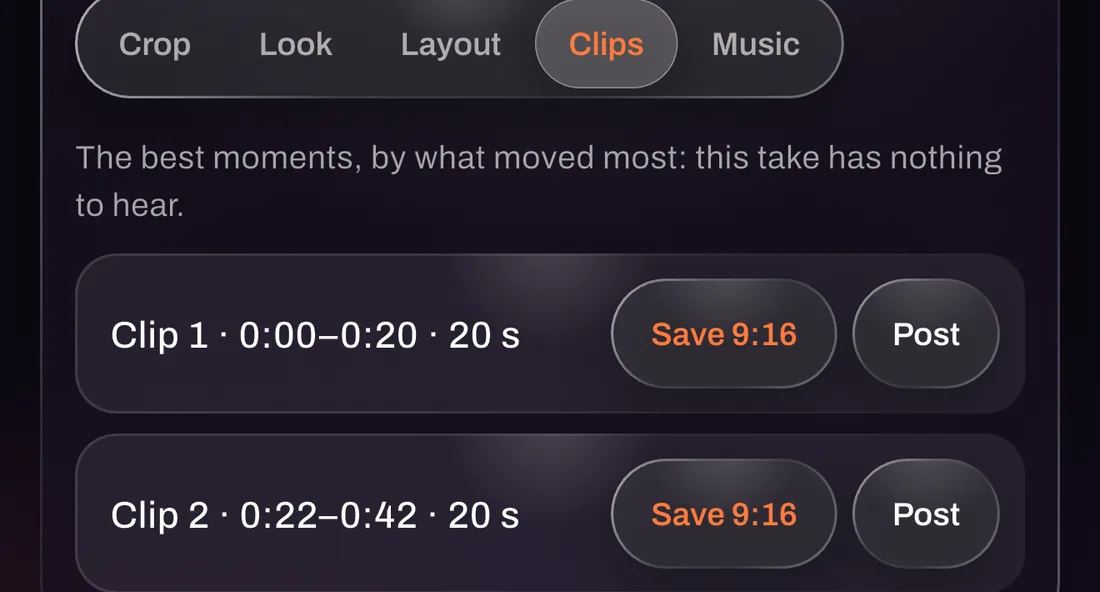
For any take of 20 seconds or more, the Clips tool reads the sound and offers the strongest 20 to 40 second stretches, snapped to caption lines when the take has a transcript. When nobody speaks it reads what moved instead. Each clip saves as 9:16 or goes straight to Post.
Looks, music and your mark
Nine looks colour the export, three of them free (Natural, Vivid and Warm). With PRO, a song from Files can sit under your voice, fading out at the end, and your own handle or logo can replace the watermark on every export.
Rearrange a two-camera take
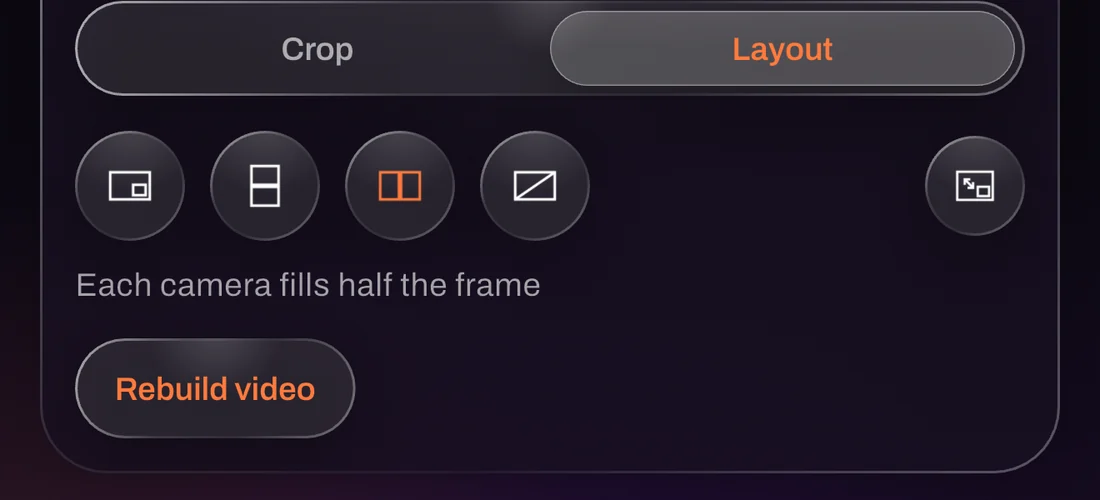
If the take saved its clean per-camera videos, the Layout tool rebuilds the combined video in any of the four layouts, any window shape and either camera order. It uses the same compositor the live camera used, so a rebuilt file is arranged by exactly the geometry the camera screen draws. The rebuild is a new file; the take and its files are untouched.
Export and share
Export writes MP4 or MOV, whichever Settings → Export format says, and saves to Photos with add-only permission, so the app can put videos in and never read your library. Share hands the files to the iPhone share sheet, every file of the take at once. Exporting and sharing are free in HD with a small Dual Recorder watermark; PRO exports at the recorded size with no watermark, or with your own handle or logo.
Every platform and Post
Every platform (PRO) writes 9:16, 16:9 and 1:1 versions of the take in one tap and shows them before it saves. Post sends one clip to TikTok, Instagram Reels or Stories, YouTube Shorts or YouTube: it is exported in the shape that app wants, saved to Photos, and the app opens on it.
Exports are temporary files on their way to Photos and are deleted once they arrive, so a 4K rebuild never sits in the app’s storage.
Questions
Editor and captions, answered
Are captions free?
Yes. Transcribing, correcting the lines and preparing the SRT are free. Burning them in is free as well, in HD with the small watermark like every free export.
Which iPhones can write captions?
iPhones running iOS 26, where Apple’s on-device speech models are available. The app checks that the phone can transcribe, not just the iOS version, and only then offers the Captions tool.
How does Clips choose the moments?
By sound first: the loudest, most speech-dense stretches of 20 to 40 seconds, grown to the next pause and snapped to caption lines when there is a transcript. A take with nothing to hear is read by motion instead.
Can I edit each camera’s video separately?
The trim range and crop apply to every file of the take, which keeps them aligned. Use the source switch to check each camera, then choose at export which files to write.
Trim. Crop. Export.
Dual Recorder: Dual Camera is available now on the App Store for iPhone.