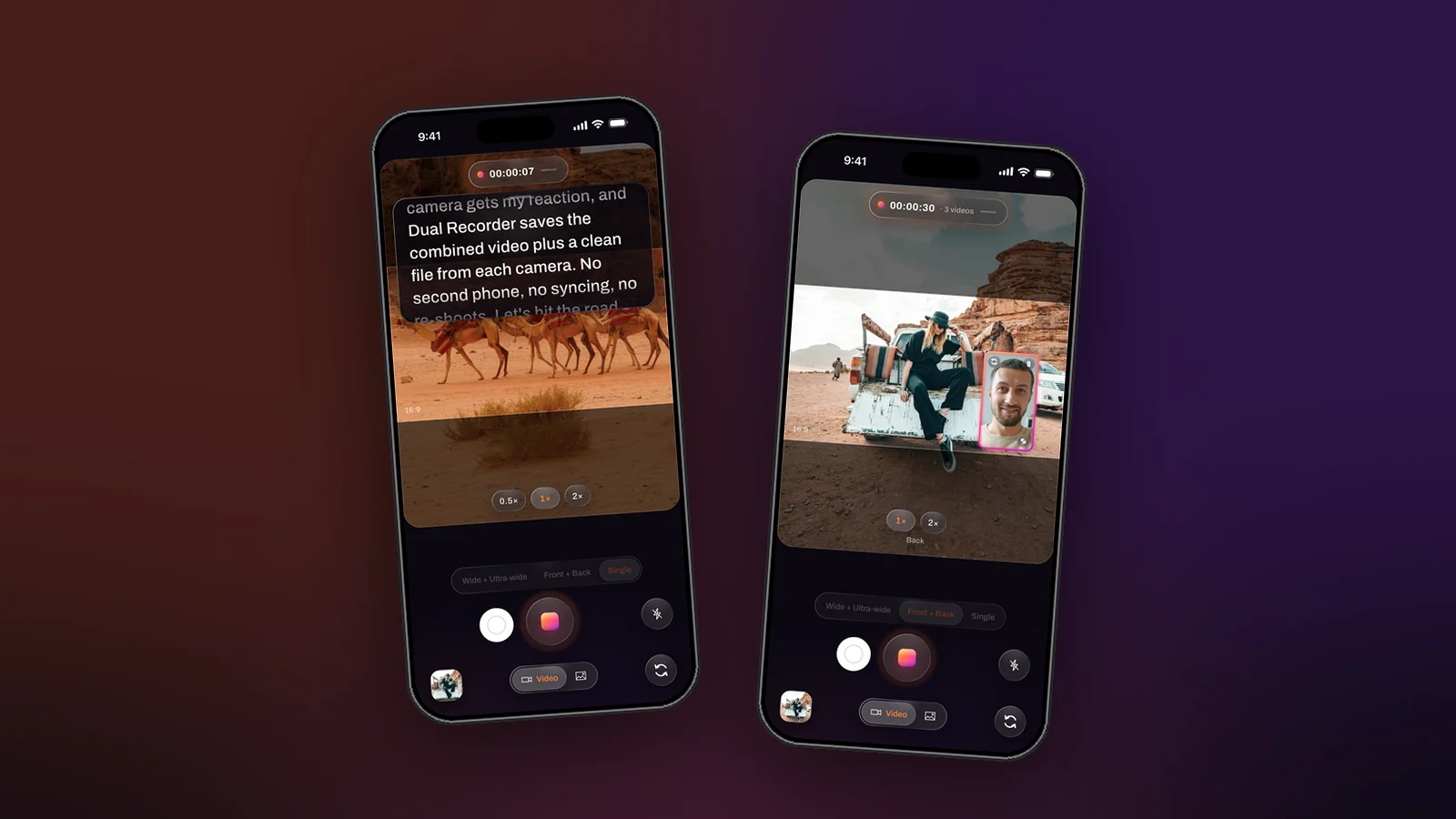
Viewers forgive a lot, but not eyes that keep flicking to the side. A script on a second phone, a laptop or a printed page pulls your gaze away from the lens every few words, and the recording shows it. The fix is to put the words where the lens is. Dual Recorder’s teleprompter scrolls the script over the live preview, right under the front camera, while the take records. Here is how to set it up so the reading disappears and only you are left.
Write the script for the eye, not the page
Prompter text is read in glances. Break the script into short lines, one thought each, and let sentences end at the end of a line. Contractions and the words you actually say out loud read faster than the polished version. Mark pauses with a line break rather than a comma; the empty line is a cue you can see without thinking.
Set the speed by reading it once out loud
Open the teleprompter, paste the script, play it and read along at a natural pace. If you are chasing the text, slow it down; if you are waiting for it, speed it up. The right speed is one where you can pause for a breath without the next line running off the panel. Set the text size large enough that a line is a single glance, and use the Opacity slider to make the panel as solid as the scene needs: over a bright window or a white wall a heavier panel beats a bigger font.
Put the panel under the lens
The panel sits near the top of the preview by default, which is where the front camera is. Keep it there; the shorter the distance between the words and the lens, the less your eyes move. If it hides something you need to frame, drag the grabber at its top to bring it down a little. It never covers more than forty percent of the frame, and the app remembers where you left it.
Record with both cameras, so the script earns its keep
Switch to Me + View before you start. The front camera films you delivering the lines and the back camera films what you are talking about, and the take saves both. With Videos to save set to Both you get the combined video, ready to post with the second camera in its window or split, and a clean video from each camera for a longer edit. A tutorial, a walk-through or a piece to camera on location comes out of one take that way, with no B-roll to shoot afterwards.
The script is an overlay for you only. It is never recorded into the video.
Practise once, then keep the first good take
Run the script once without recording to catch the lines that do not sound like you, then fix them in the text rather than in your delivery. Press and hold the panel to jump back to the top. On the real take, leave a beat before the first word and after the last; the trim is a single drag in the editor, and the clean files keep the same range.
Fix words in the captions, not in a reshoot
On iOS 26 the editor writes a transcript on the phone. A stumble that would once have meant another take is a line you correct by hand; the corrected line shows in full white so you can see what changed. Burn the words into the picture for feeds that autoplay muted, or export an SRT for the platforms that take a caption file.
Short lines, a speed set by ear, the panel under the lens, both cameras rolling. That is the whole method, and after two or three videos the reading stops being visible at all.