
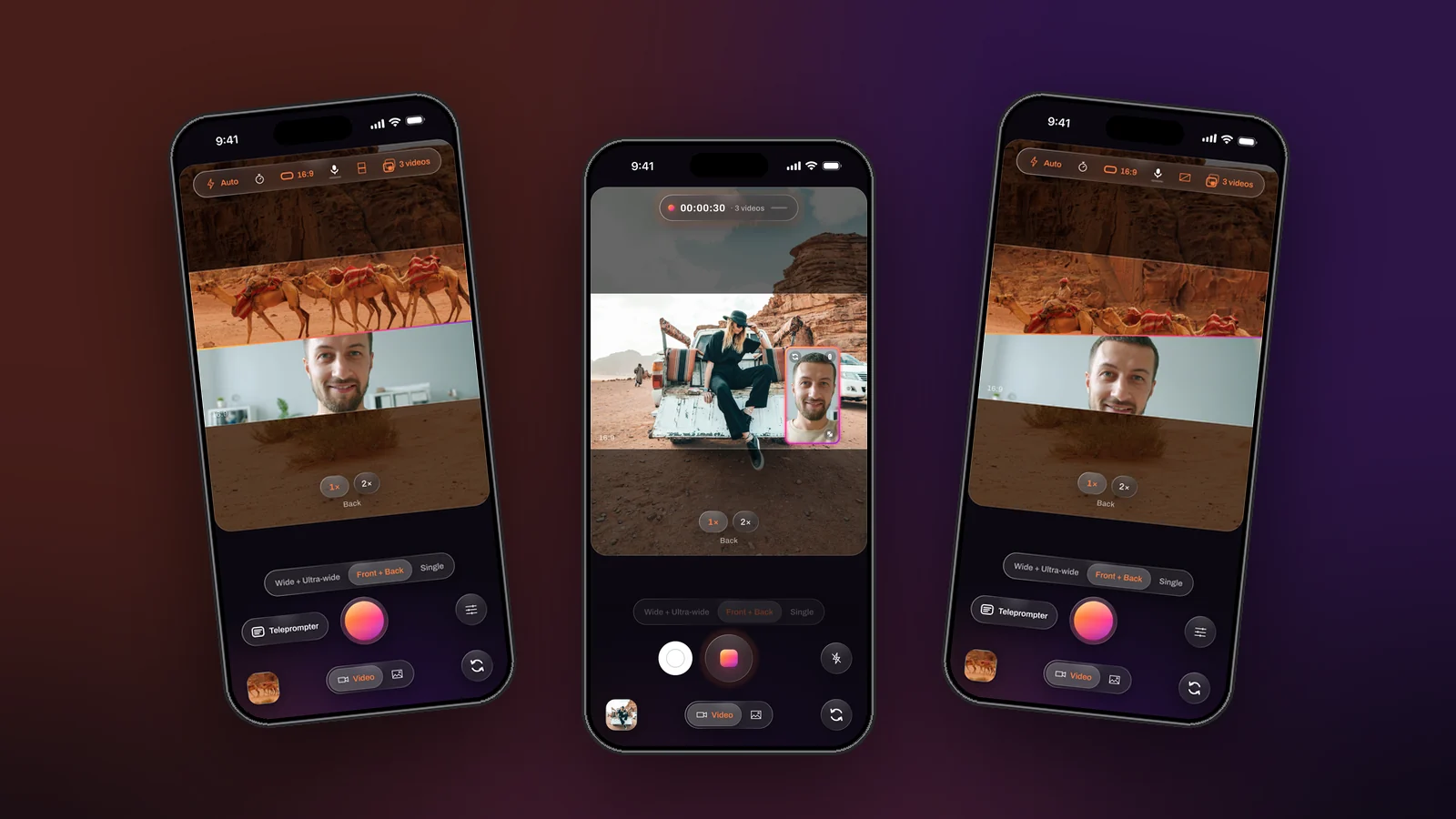
A reaction video has two halves: the thing and your face. Filmed with one camera it needs two takes and an edit; filmed with two phones it needs a clap and a timeline. An iPhone from the XS onward can record both cameras at the same time, and Dual Recorder saves the result as one finished video, two clean ones, or all three. Here is the whole process, start to post.
Before you record: three choices
1. Mode: Me + View
Swipe to Me + View in the mode pills. The back camera films the thing you are reacting to, the front camera films you. Both record at the same instant with one microphone track, so there is nothing to line up afterwards.
2. Layout: over / under for vertical, window for commentary
For a vertical video the over / under split is the reaction format viewers know: the scene on top, your face below, each filling half the frame. Drag the seam to give the scene more room or yourself more. For a commentary style where the scene matters more, keep the floating window instead and park your face in a corner; the window can be a circle, which reads as “commentator” at a glance. Either way, zoom the back camera with a pinch on its half or on the picture without touching the front camera’s framing.
3. Videos to save: Both
Set Videos to save to Both. You get the combined video to post right away, plus a clean video from each camera at the same length and size. If the scene deserves a longer edit later, the clean files are already on the phone and already aligned; if it does not, ignore them. Both costs about three times the storage of one file, and the app says how much per minute in Settings before you start.
During the take
Press record, or a volume button. While it runs you can still drag the seam, move the window, swap which camera is the main one, and switch the light on if the room darkens. Two controls stay live for the whole take: the white shutter next to the record button, which saves a photo of the current arrangement without stopping the video, and the light. Everything else locks so a stray touch cannot change the file mid-sentence.
If you have an intro to deliver word for word, open the teleprompter first. It scrolls the script over the top of the preview, just under the front camera, so your eyes stay near the lens while you read.
After the take
- Trim. The editor’s filmstrip sets the range; the trim applies to every file of the take, so the three videos stay the same length.
- Change your mind about the layout. Because the take saved its clean files, the Layout tool can rebuild the combined video side by side for a landscape platform, or with the window somewhere else, without touching the original.
- Captions. On iOS 26 the transcript is written on the phone. Correct any line, then burn the words in for feeds that autoplay muted, or export an SRT.
- Export. Save the combined video to Photos, or all three, and share from there.
Five things that make a reaction watchable
- Light your face, not the screen. The front camera is the weaker of the two; a window or a lamp in front of you does more than any setting.
- Check the microphone meter before you commit. It sits under the mic control and shows the sound is arriving. A silent take is not a take.
- Frame for the split. In over / under each camera is centre-cropped to a wide strip, so put the subject and your face in the middle of their pictures, not at the top of the frame.
- Pick the video shape first. 9:16 for a story or short, 16:9 for a channel. The bright band on the preview shows exactly what ends up in the file, and the clean files are cropped the same way.
- Leave a beat at the start and the end. Trimming is easy; recovering a cut-off first word is not.
That is the whole workflow: three choices before, one button during, and a trim after. The part that used to take the longest, syncing a second camera, is simply not there.