Layouts
Picture-in-picture, split screen and a diagonal seam
Two cameras need a way to share one frame. Dual Recorder gives you four: a floating window you can drag, resize and reshape, two straight splits, and a slanted one. Pick a layout from the top bar, change it in the middle of a take, and the video file matches what you saw on screen to the pixel.
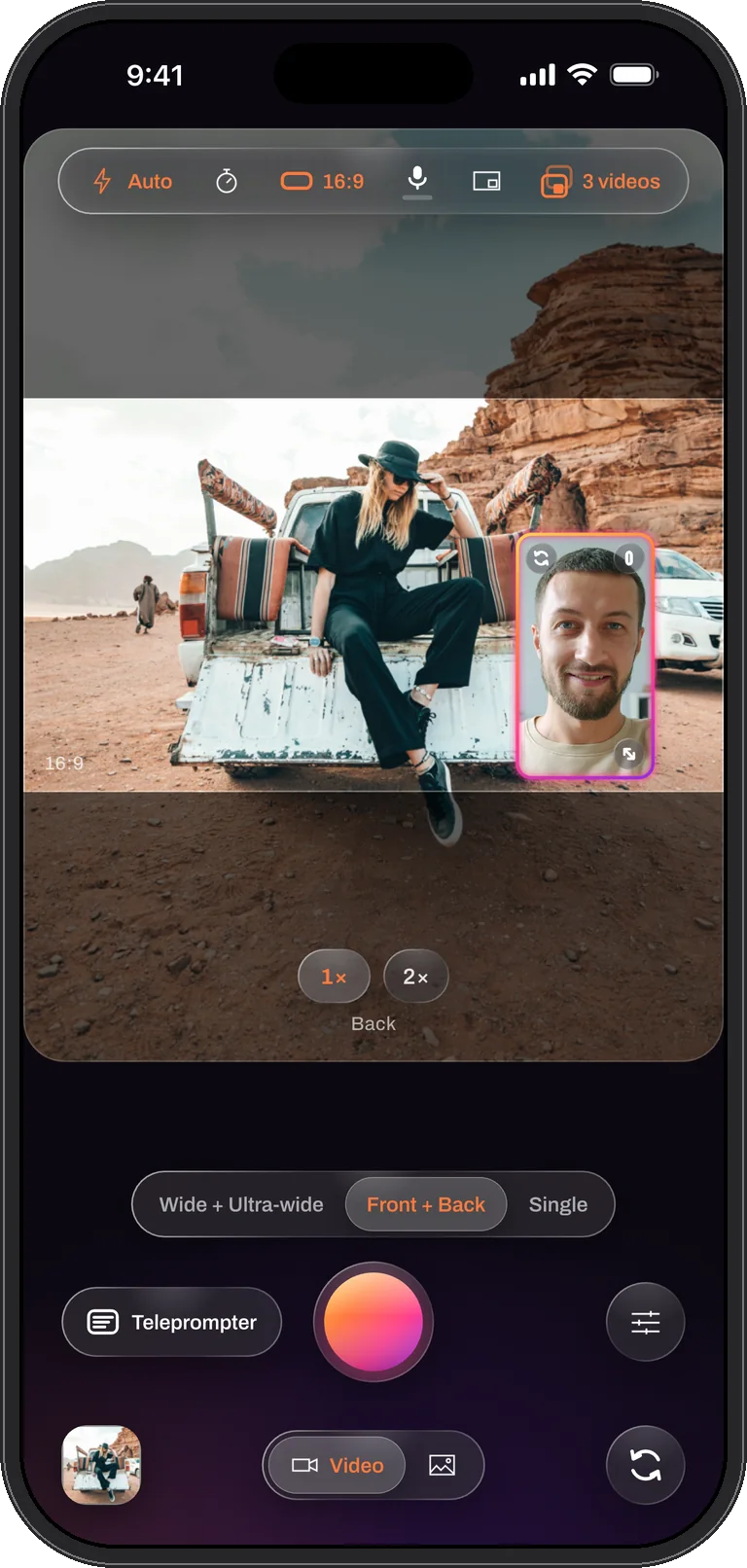
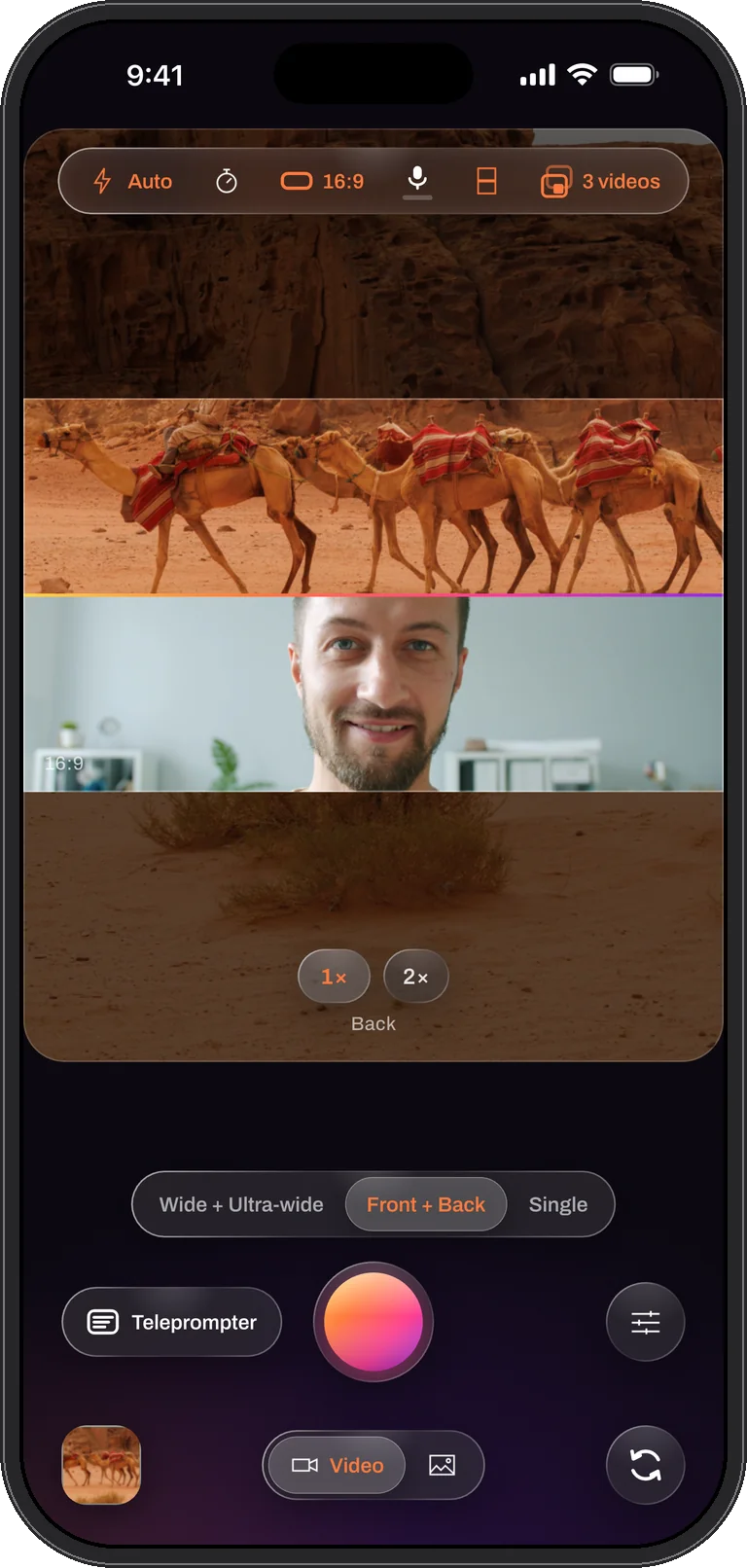
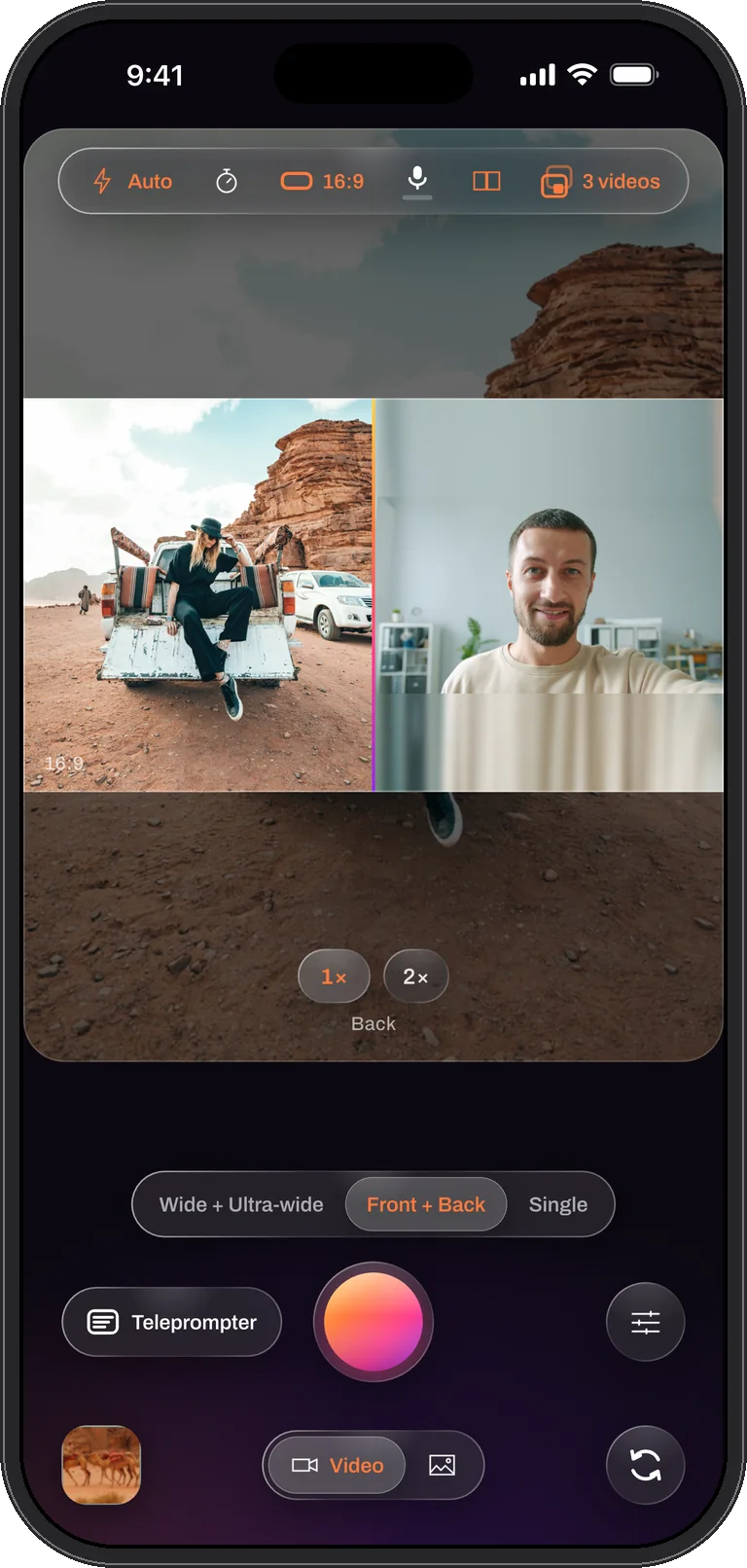
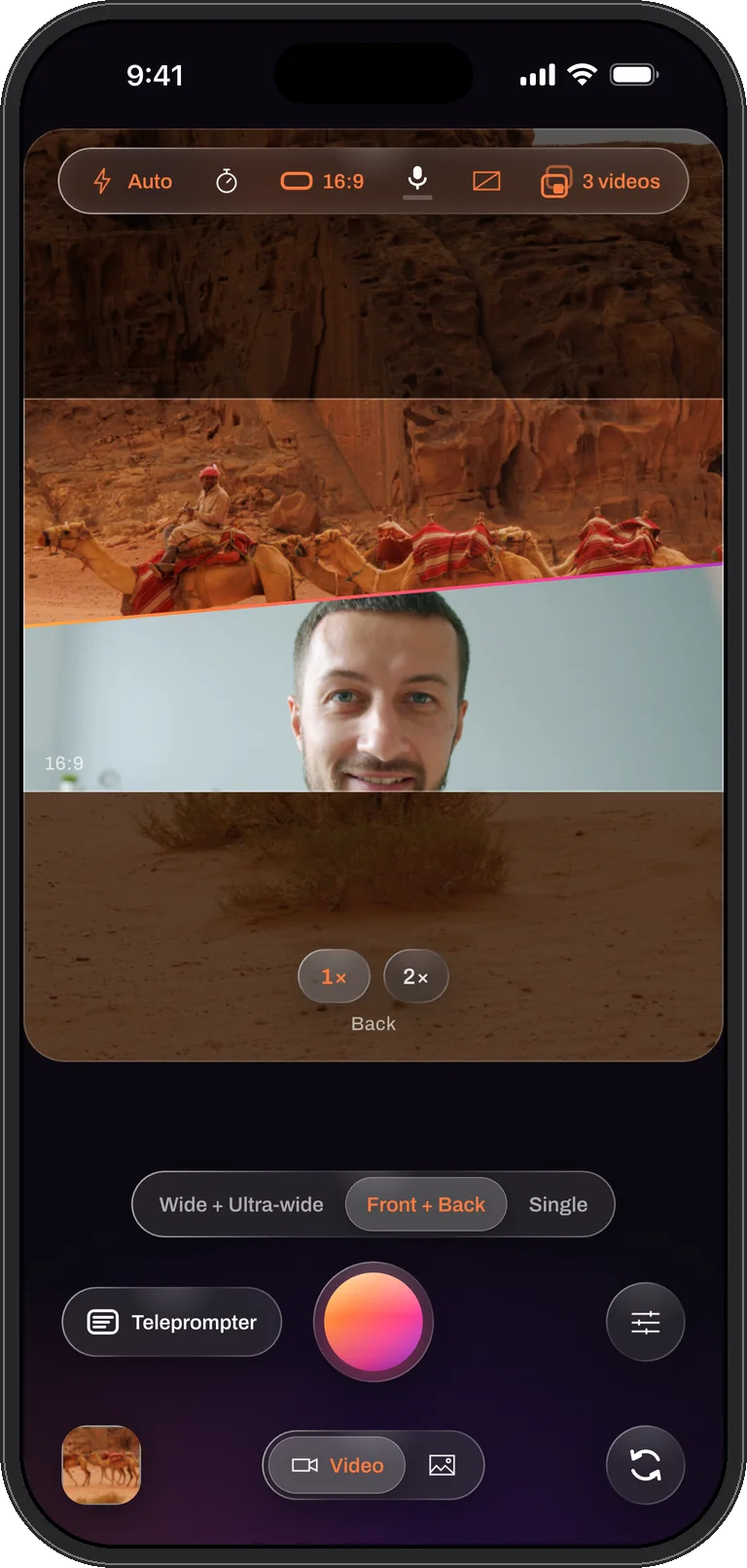
Tap a layout to see it
Every picture here is a real capture of the app in Me + View mode.
The window: picture-in-picture that is yours to place
The floating window is the classic two-camera look: the scene fills the frame and the second camera sits in a corner. In Dual Recorder the window is not fixed. Drag it anywhere on the picture, pull its corner to resize it, and it keeps clear of the zoom controls on its own. A control on the window walks through every shape: three rectangles, a circle, a square and a star. Changing the shape keeps the window’s area, so a circle is as big as the rectangle it replaced. A swap control puts the other camera in the window without stopping the take.
Once you have touched the window it is yours. Switching between Me + View and Two angles keeps its shape, size and place; only an untouched window takes the new mode’s default, portrait for a selfie window and landscape for two back cameras.
Over / under and side by side: the straight splits
A split gives each camera half the frame with nothing covered. Over / under stacks the two pictures, which suits a vertical video where the scene sits above your reaction. Side by side puts them left and right, which suits a landscape video or a conversation between two people. Each camera fills its half edge to edge, centred, with no black bars.
The seam between the halves is a drag. Pull it to give the main camera more of the frame or less, and the change is written into the file. The seam is drawn in the same sunset gradient as the window’s rim, on screen and in the video.
The diagonal: a slanted seam, not a corner-to-corner cut
The diagonal layout is an over / under split whose seam is tilted. It is deliberately not a corner-to-corner cut: two triangles leave a face at the sharpest point of the picture, where the hypotenuse crops it. With a slanted seam each camera keeps a wide band across the frame, and the same drag that moves a straight seam moves this one.
The cut-out: you over the other camera, no green screen needed
The fifth layout floats the window camera over the other picture with its background removed. Hang a green or blue sheet, or pick the screen colour with a tap, and the key takes it out; choose No screen and the phone finds the person by itself, with no sheet at all. Tolerance and softness tune the edge, and the file carries the key exactly as the preview shows it. Trying it is free, and it exports like any take.
Duet: side by side in React
React mode puts a video from your library or a link where the back camera would be. Choose Duet in the clip panel and it becomes a side-by-side split: the clip on one side, you on the other, with the seam between. In the file the clip’s sound is ducked under your voice whenever you speak, so the reaction is never drowned out.
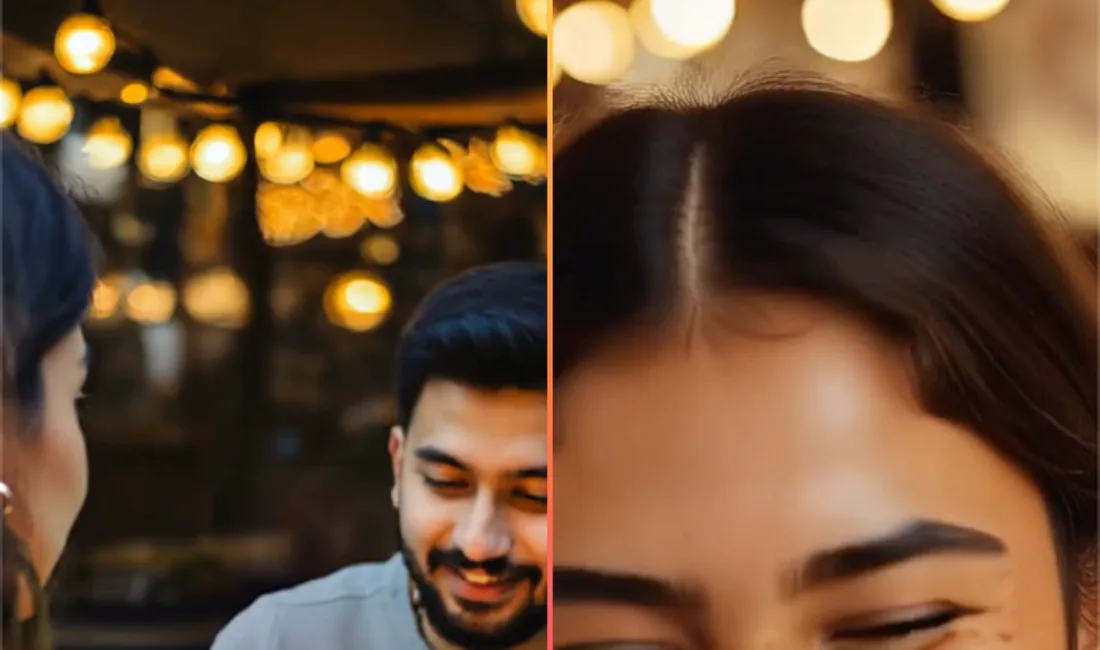
Director picks the camera for you
In the window layout, Director can do the swapping: whoever is talking fills the frame and the other camera sits in the window, with a split when both talk. The cuts are baked into the combined file as you record. Recording with Director is part of PRO.
Zoom each camera on its own
A split shows both feeds at once, so one zoom factor for the pair would move a picture you were not touching. Zoom is per camera. A pinch zooms whatever it lands on, the half, the window or the main picture, and the zoom pills follow that camera and name it underneath.
The file matches the preview
The preview and the video are built from the same geometry. The rectangle each camera fills, the position of the seam, the shape and rim of the window, all of it is one description shared by the screen and the recorder, so what you saw while filming is what the combined video contains. There is no rendering step afterwards where the framing could drift.
Change the layout after the take
A layout choice is not final if the take saved the clean per-camera videos. With Separate or Both, the editor’s Layout tool rebuilds the combined video in any arrangement, window shape or camera order, using the same compositor the live camera used. The original take and its files are never touched; a rebuild is a new file.
Only the combined video is arranged. The clean per-camera files stay full frame in every layout, which is what makes them useful in another editor.
Questions
Layouts, answered
Can I change the layout while recording?
Yes. The layout is picked from the top bar or the Dual Camera sheet and can be changed mid-take; the change is baked into the combined video from that moment on. The window can be dragged, resized, reshaped and swapped during a take as well.
Does a split change the clean per-camera videos?
No. Only the combined video is arranged. When a take saves Separate or Both, each camera’s own file stays full frame, cropped to the same video shape and size as the combined one so they line up.
Do I need a green screen for the cut-out?
No. The cut-out keys a green or blue sheet, or a colour you pick, and its No screen option finds the person on its own. A sheet still gives the cleanest edge under even light.
Does the window have to be a rectangle?
No. The control on the window cycles through three rectangles, a circle, a square and a star, and a change of shape keeps the window’s area. The rim is the same sunset gradient on screen and in the file.
Frame it your way. Keep every file.
Dual Recorder: Dual Camera is available now on the App Store for iPhone.